Running a quick webcam and microphone test online ensures you avoid awkward technical glitches during important video calls, interviews, or virtual meetings. Taking two minutes to check your hardware beforehand gives you peace of mind and lets you fix audio or video delays before anyone else joins the room.
Key takeaways
- Test both your video and audio devices in the exact browser you plan to use for your call.
- Check your browser permissions if your camera or microphone fails to start.
- Adjust your background lighting to ensure your webcam feed is clear and professional.
- Use a dedicated online testing tool to verify input levels without needing to call a colleague.
Why a pre-call check saves time
Technical difficulties are the most common cause of delayed meetings. Whether you are interviewing for a new job, presenting to clients, or catching up with family, hardware glitches can disrupt the flow. Operating systems often switch default audio inputs automatically after an update, or a browser might block camera access for privacy reasons.
Running a dedicated check lets you confirm that your hardware is properly connected and recognized. It also allows you to test your microphone levels, ensuring your voice comes through clearly without annoying background static or low volume.
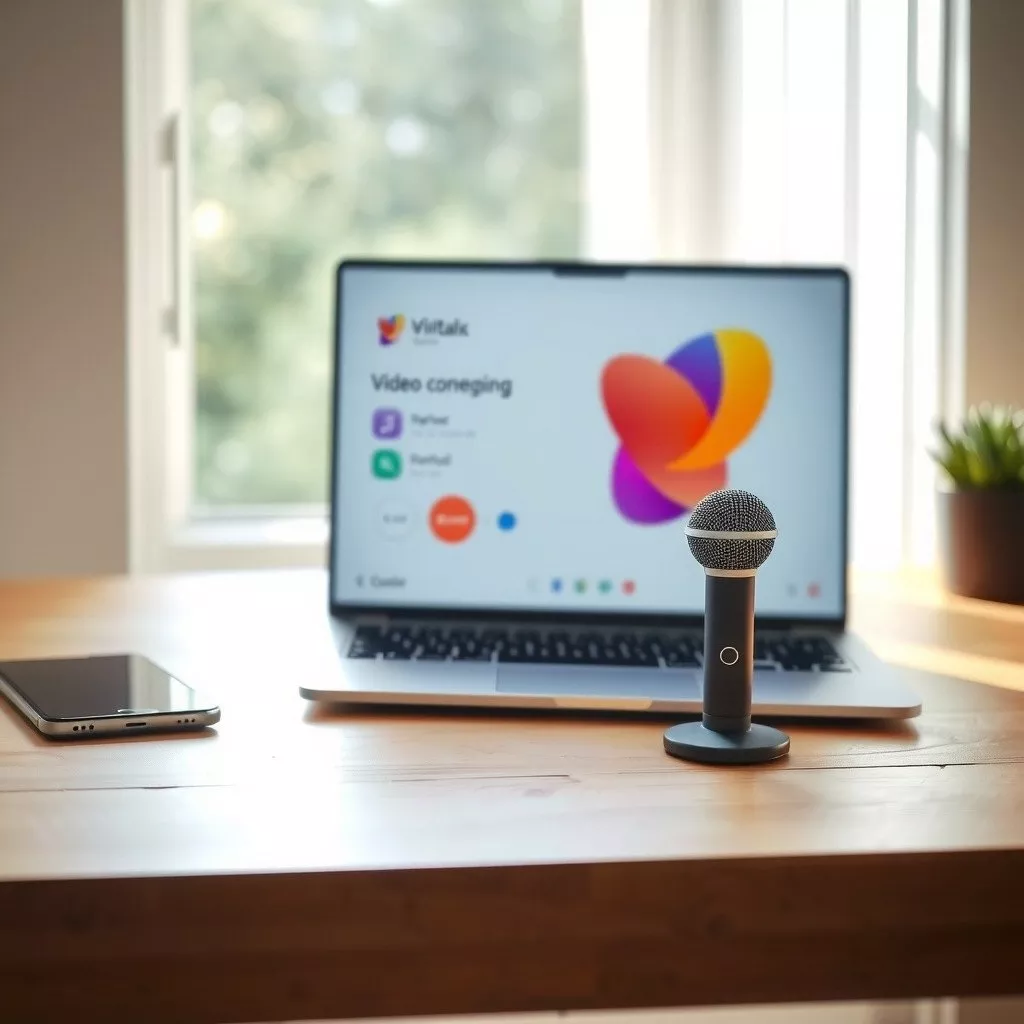
How to test your webcam online
Checking your video feed takes only a few seconds when using browser-based utilities. First, ensure your physical camera shutter is open and any privacy switch is turned off.
- Open your preferred web browser and navigate to a reliable testing page.
- Click the prompt asking for permission to access your camera.
- Observe the preview window to check your framing, background clutter, and lighting.
- Move slightly to check for frame rate lag or freezing issues.
If the screen remains black, check your device manager or system settings to ensure another application is not currently locking the camera feed.
How to check your audio and microphone levels
Clear audio is often more important than high-definition video during online communication. If people cannot hear you, your message is lost immediately.
To run a proper audio check, speak at your normal conversational volume while watching the input meter. The visual indicator should move into the green zone as you talk. If the meter barely registers, your system input volume might be set too low, or you might be speaking into the wrong microphone—such as a built-in laptop mic instead of a clearer headset or desktop microphone.
Common audio troubleshooting steps
- Select the correct input device from your system or browser settings dropdown menu.
- Move closer to the microphone or adjust the gain dial if your hardware has one.
- Close background music or heavy processing apps that might steal system audio resources.
Optimizing your lighting and environment
Your camera can only capture what is available in your room. Positioning a lamp behind your monitor facing your face eliminates harsh shadows and improves the overall quality of your webcam feed. Avoid sitting directly in front of a bright window, which turns your silhouette into a dark shadow.
Additionally, check your surroundings for distracting background noise or clutter. If necessary, use virtual backgrounds provided by your meeting software, but keep in mind that they require extra processing power from your computer.
FAQ
Why is my browser blocking my webcam and microphone?
Most modern web browsers block automatic hardware access for security and privacy reasons. When you visit a testing page or a video call link, look for a prompt near the address bar asking for permission to use your camera and microphone, and click allow.
What should I do if my microphone is not picking up any sound?
First, verify that your microphone is not physically muted via a button on the cord or the device itself. Next, check your operating system sound settings to ensure the correct microphone is selected as the default recording device.
Do I need to install any software to test my equipment?
No installation is required. Modern browsers support WebRTC technology, which allows websites to access your camera and audio inputs directly for testing purposes without downloading external apps.
How can I improve my video quality without buying a new camera?
Improving your room lighting offers the highest impact on video clarity. Clean your laptop camera lens gently with a microfiber cloth, and ensure your internet connection is stable by moving closer to your Wi-Fi router or using an Ethernet cable.
Next step
Ready to check your setup? Run a quick Webcam Test or check your audio levels with the Microphone Test before your next meeting.
Cover image: Image: DarkoStojanovic / Pixabay.