You can extract high-quality still images from any video file by using an online video to JPG converter or native video players like VLC and QuickTime. This allows you to capture action shots, save thumbnail images, or grab specific information from video footage without taking low-resolution screenshots.
Whether you are capturing a clear moment from a family recording, grabbing a frame for a blog graphic, or saving video notes, extracting direct frames ensures you keep the highest possible image clarity.
Key takeaways
- Free web tools allow you to convert video frames directly in your browser without software installation.
- Extracting frames directly preserves the original resolution of your video file better than manual screen capture keyboard shortcuts.
- JPG format is ideal for standard web sharing and photos, while PNG is useful if lossless compression is required.
- Native media players such as VLC Media Player or QuickTime offer offline frame extraction shortcuts.
Why Use a Video to JPG Converter Instead of Screenshots?
Taking a screenshot while playing a video often results in blurred images, visible player controls, or reduced pixel quality due to screen scaling. A dedicated video to JPG converter accesses the exact video frame data directly from the container file, giving you a full-resolution image capture.
When you take a standard screenshot on a computer or smartphone, the image quality depends on your screen’s current display resolution rather than the actual resolution of the video file. For example, playing a 4K video on a 1080p monitor will produce a 1080p screenshot, discarding half of the original image detail. Frame extraction tools bypass your display settings entirely and export the raw frame data at native resolution.
Additionally, screen capture tools often capture overlay UI elements, mouse pointers, or video playback scrub bars. Direct frame extraction eliminates these visual distractions automatically, providing a clean image ready for immediate publishing or archiving.
How to Extract Frames Online directly in Your Browser
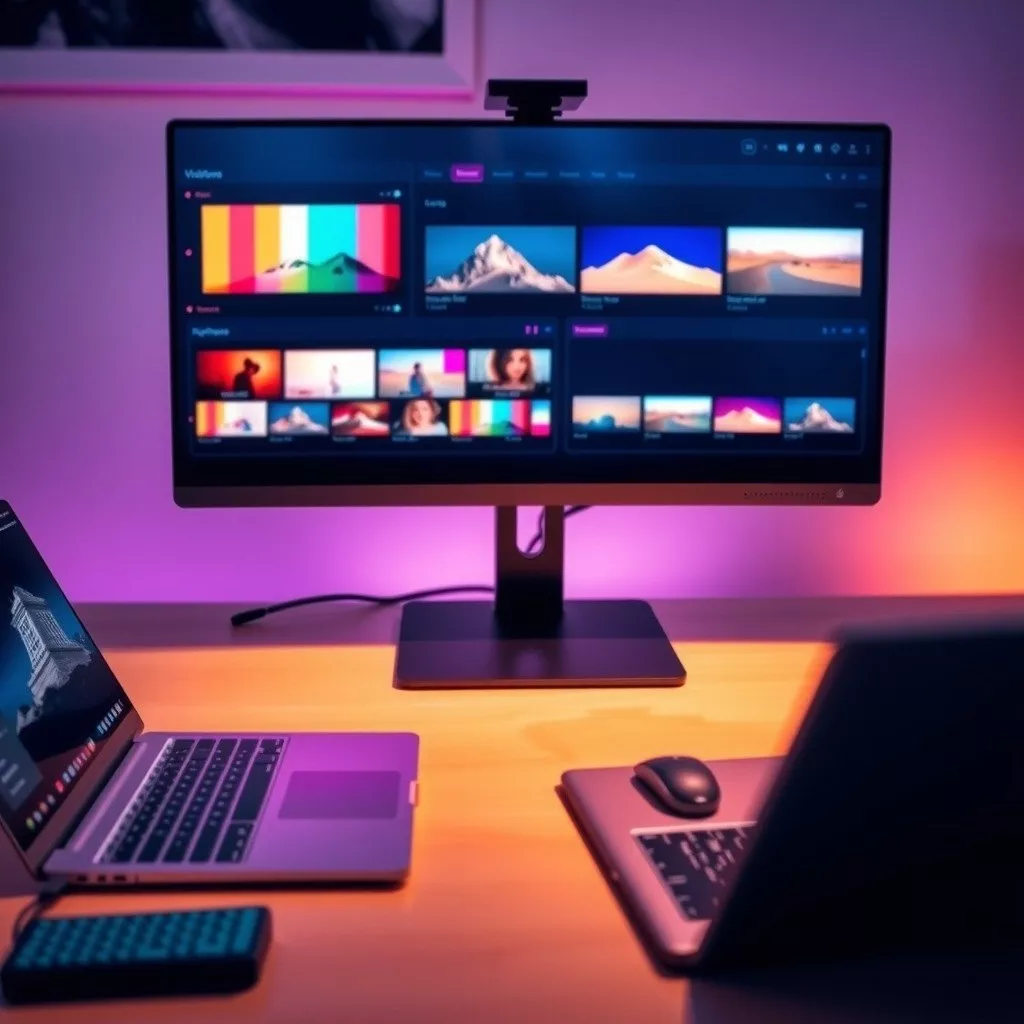
Extracting video frames through a web browser is the fastest option for most users because it requires no software setup or plugin installation. Modern web applications can process your video locally within your web browser using WebAssembly technology, ensuring your files never leave your device.
Step-by-Step Online Extraction Guide
- Select your video file: Open the Video to JPG converter tool on your device.
- Load the clip into the player: Drag and drop your video file into the designated upload area or click to select it from your local storage.
- Navigate to the exact frame: Use the frame seek control slider or frame-by-frame navigation buttons to pinpoint the precise image frame you wish to convert.
- Export as JPG: Click the capture frame button to generate your full-resolution image download instantly.
If your source video contains unnecessary footage, you can also use a tool to trim a video online first so you only work with the relevant segment.
| Extraction Method | Resolution Quality | Privacy Level | Setup Required |
|---|---|---|---|
| Browser Converter | Full Native Resolution | High (Local processing) | None |
| Standard Screenshot | Screen Display Quality | High | None |
| VLC Media Player | Full Native Resolution | High (Offline) | Installation Required |
| Mobile Screen Snap | Device Display Quality | High | None |
Extracting Video Frames Using Desktop Players
If you frequently work offline or deal with very large video files (such as multi-gigabyte recordings), standard desktop media players include built-in frame snapshot options.
Using VLC Media Player (Windows, macOS, Linux)
VLC Media Player is a versatile open-source program that includes a frame capture feature:
- Open the video: Launch VLC and load your video clip.
- Locate the frame: Pause the video near the target frame. You can press the E key on your keyboard to step forward frame by frame.
- Take the snapshot:
- On Windows/Linux: Press Shift + S or go to Video > Snapshot.
- On macOS: Press Command + Alt + S.
- Find your saved image: By default, VLC saves snapshots in your system’s Pictures folder as PNG or JPG files.
Using QuickTime Player (macOS)
Mac users can quickly extract single frames using the pre-installed QuickTime Player:
- Open your video file in QuickTime Player.
- Pause the video at the frame you want to extract.
- Choose Edit > Copy (or press Command + C) to copy the frame to your clipboard.
- Open the Preview application, select File > New from Clipboard (or press Command + N), and save the image as a JPG file.
Choosing the Right Image Format and Optimization
When converting video frames, choosing the right file format ensures you maintain visual clarity while managing file sizes effectively.
JPG vs. PNG for Video Frames
- JPG (JPEG): Best for photographic video scenes, natural lighting, complex gradients, and realistic footage. JPG produces compact file sizes that load quickly on web pages and social platforms.
- PNG: Best for high-contrast graphics, screen recordings, text overlays, digital illustrations, or images where lossless quality is non-negotiable.
Once you have extracted your frame, you can use an online tool to reduce image file size to optimize the graphic for fast web display without sacrificing visible sharpness. If you need audio alongside your visual assets, you can also easily extract audio from video to create complementary sound clips for your projects.
FAQ
Will extracting a JPG frame lower the video quality?
No, extracting a frame directly grabs the original bitmap data of that frame from the video stream. The output image match the source video’s actual resolution (e.g., 1920×1080 or 3840×2160).
What video formats are supported for frame extraction?
Most modern browser-based and desktop converters support all common video formats, including MP4, MOV, WebM, AVI, MKV, and M4V.
How do I capture motion without motion blur?
Motion blur is captured during the original video recording if the camera’s shutter speed was slow. To find the sharpest frame, pause the video and step frame-by-frame through action sequences to locate the clearest freeze-frame.
Is my private video uploaded to an external server?
When using privacy-focused browser tools that process files locally on your device, your video file stays completely on your computer or mobile device during processing.
Next step
Convert video clips into sharp visual images right inside your web browser with our free Video to JPG converter tool, or explore how to trim a video online to prepare clips for extraction.