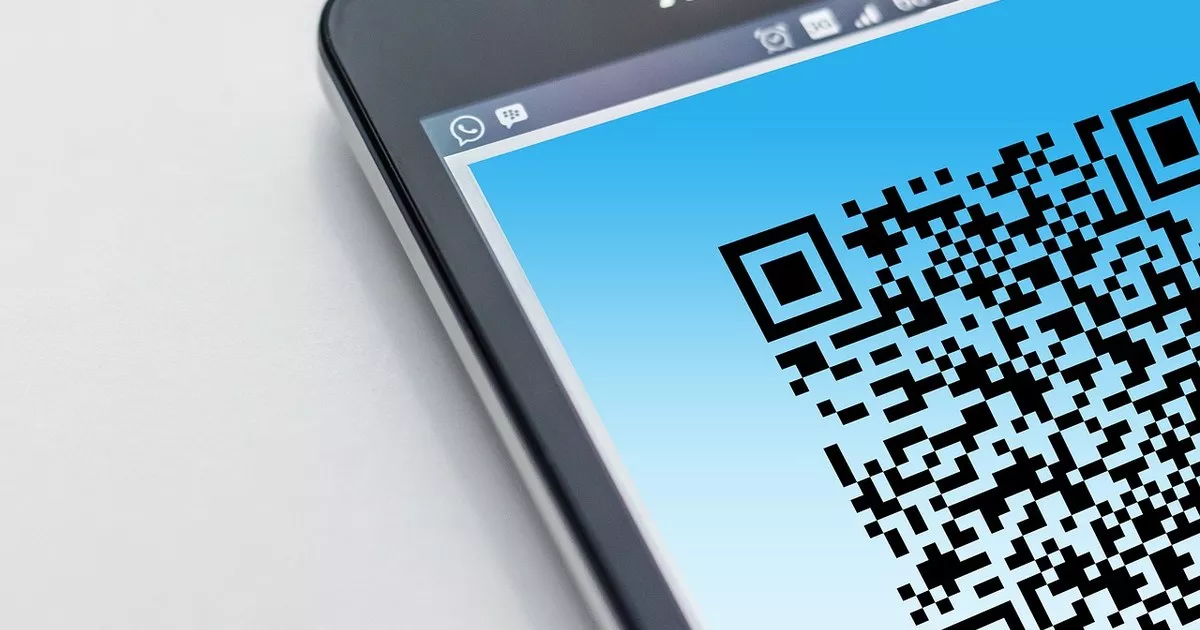
You can easily generate a QR code for Wi-Fi networks and URLs to share internet access or website links instantly without manual typing. By converting your connection credentials or links into a scannable image, you remove the frustration of copying, pasting, or dictating complex characters.
Key takeaways
- QR codes eliminate the need to share passwords verbally or type them manually on mobile devices.
- You can create codes for Wi-Fi credentials (SSID/Password) or website URLs for quick access.
- Browser-based tools allow you to generate these codes securely on your own device without uploading data to a server.
- Always test your QR code with multiple devices before printing or distributing it.
Why use QR codes for sharing?
The primary benefit of a QR code is convenience. Typing a long, complex Wi-Fi password is prone to errors, especially on small smartphone keyboards. A QR code allows guests or users to connect simply by pointing their camera at the code. This is particularly useful for businesses, cafes, or even home environments where you frequently have visitors who need internet access.
Beyond Wi-Fi, using QR codes for URLs is an effective way to direct people to specific pages without them needing to type out a long web address. Whether it is a link to a digital menu, a portfolio, or a specific document, a QR code bridges the gap between physical materials and digital content.
How to generate QR code for Wi-Fi
To generate a QR code for Wi-Fi, you need three pieces of information: the Network Name (SSID), the Password, and the Encryption type (usually WPA/WPA2/WPA3).
- Open the tool: Navigate to the QR Code Generator.
- Select the type: Choose the “Wi-Fi” option from the available categories.
- Enter details: Carefully type your network SSID exactly as it appears in your router settings. Enter the password.
- Encryption: Select the security type. If you are unsure, WPA/WPA2 is the standard for most home routers.
- Generate: Click the generate button. The tool will create a unique image that you can download or print.
Once generated, you can save this image to your phone or print it out and place it in a common area. When someone scans it, their phone will automatically prompt them to join the network.
Creating QR codes for URLs
Generating a QR code for a website URL is even simpler. This is useful for sharing links to articles, social media profiles, or payment pages.
- Copy the full URL you want to share.
- In the QR Code Generator, select the “URL” or “Text” option.
- Paste the link into the designated field.
- Generate and save the image.
If you are using this for a business card or a flyer, ensure the URL is permanent. If you change the URL later, the printed QR code will still point to the old address, so consider using a permanent link or a redirect if the destination might change.
Best practices for QR codes
While QR codes are simple to create, follow these tips to ensure they work reliably for everyone:
| Tip | Why it matters |
|---|---|
| High Contrast | Black codes on white backgrounds scan best. Avoid light-colored QR codes. |
| Sufficient Size | If printing, make the code large enough to be scanned from a distance. |
| Test First | Always scan the code with both Android and iOS devices before printing. |
| Quiet Zone | Ensure there is a small margin of white space around the QR code so the camera can isolate it. |
Security considerations
When creating QR codes, remember that anyone who scans the code gains access to the information embedded within it. For Wi-Fi, this means anyone with the code can join your network. If you are in a public space, ensure the Wi-Fi network you are sharing is isolated from your private devices, such as a Guest Network setting on your router.
For URLs, avoid creating QR codes that link to sensitive personal information or login pages that are not protected. Keep the content you share via QR codes public-facing and safe.
FAQ
Are QR codes secure?
Yes, QR codes are simply a way to store text. They do not inherently contain viruses, but like any link, you should only scan codes from trusted sources. Do not scan random QR codes found in public places.
Can I change the Wi-Fi password after creating a QR code?
Yes, but you will need to generate a new QR code. The QR code contains the specific password you provided at the time of creation. If you change your Wi-Fi password, the old QR code will no longer work.
Do QR codes expire?
No, QR codes are static images. They do not expire unless the destination (the URL or the Wi-Fi network credentials) changes. You can use the same QR code as long as the information it holds remains valid.
Next step
Ready to create your own codes? Visit our QR Code Generator to get started. If you are securing your home network, you might also want to read our guide on How to Create a Strong Password to keep your Wi-Fi safe.
Cover image: Image: geralt / Pixabay.